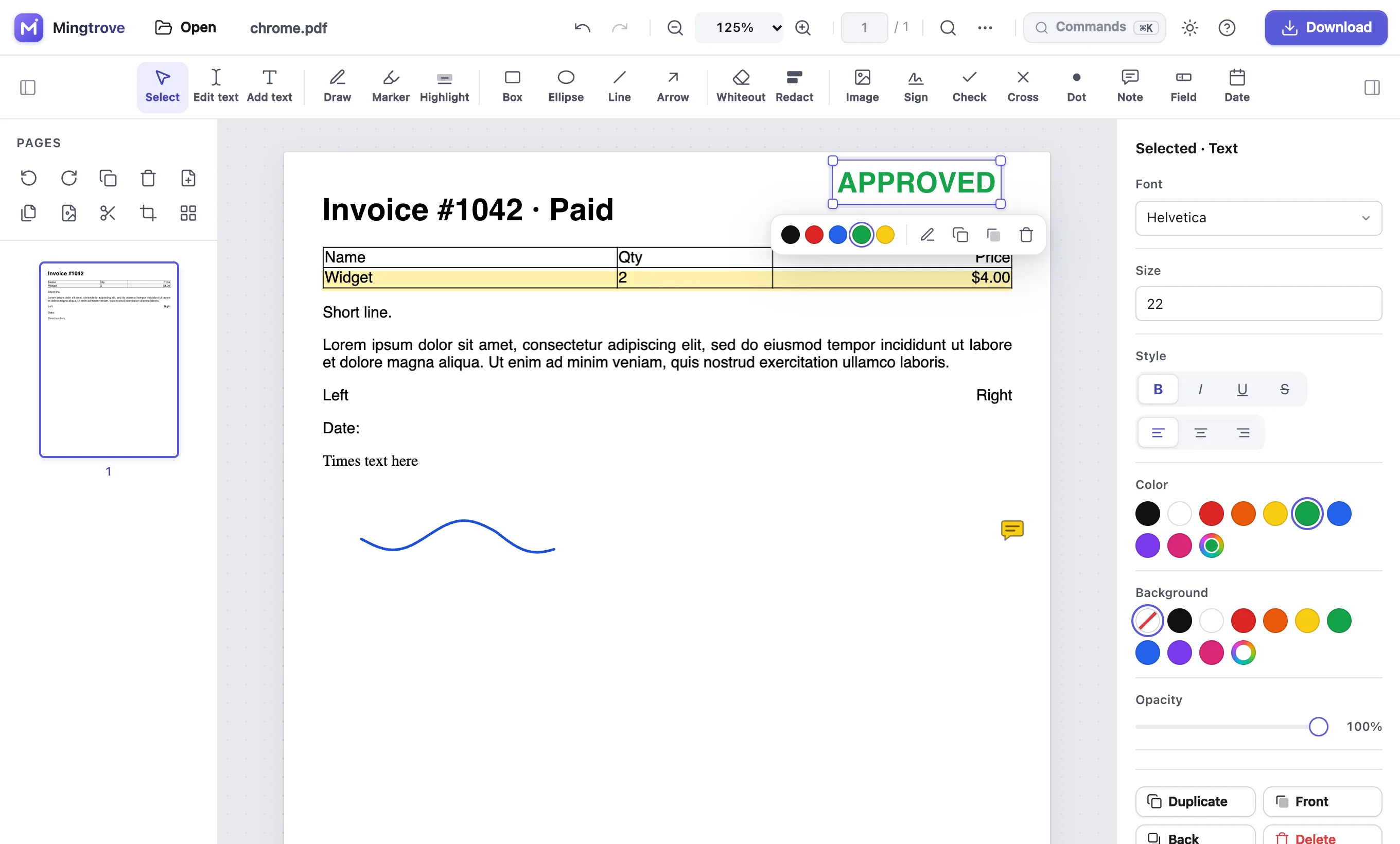
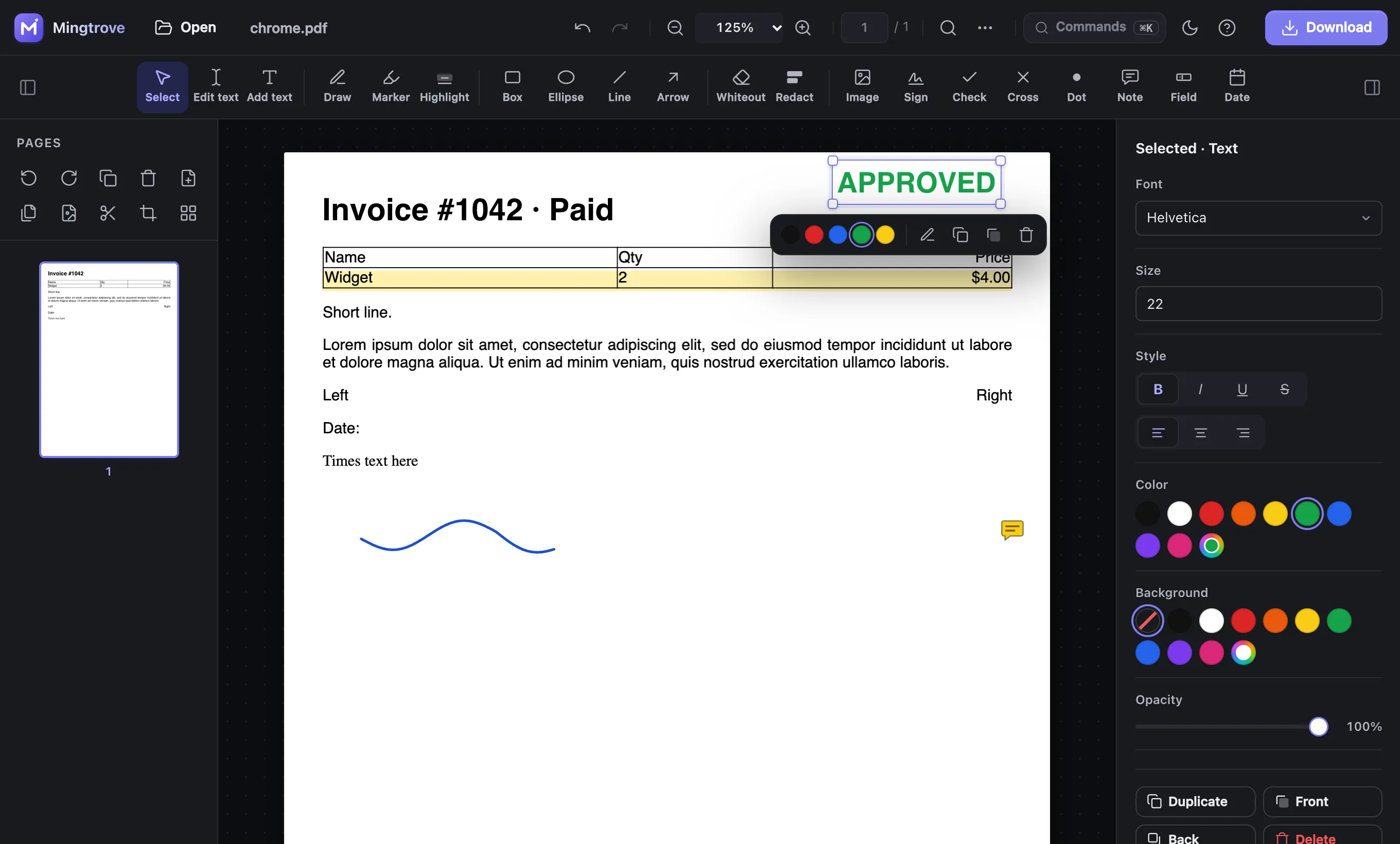
Edit existing PDF text
Click any line to rewrite it. Mingtrove matches the original font style, size, colour and position, so the change blends in.
Drag a frame over the part of the page you want to keep, or let Mingtrove fit it to the content. Apply the same crop to one page, the selected pages or all of them. The original page is kept, so you can remove the crop later.
or drop PDFs and images anywhere on this pagePDFs and photos from your device
Click any line to rewrite it. Mingtrove matches the original font style, size, colour and position, so the change blends in.
Draw, type or upload your signature and place it anywhere. Signatures are saved on your device for next time.
Type into fillable fields, or add text, ticks, crosses and dates to forms that aren’t fillable. Form fields keep working after you download.
Black out names, numbers and addresses. Redacted pages are flattened, so the hidden content is removed from the file, not just covered.
Shrink big PDFs by resizing the photos and scans inside them, with a choice of quality. Text stays sharp, and you see how much you saved.
Open a password-protected PDF with its password and save a copy without the password. The text stays real text.
Combine several PDFs and photos into one file. Put them in any order, then download the result or keep editing it.
Split a PDF into single pages, equal parts or custom page ranges like 1-3, 4-8. The parts download together as one ZIP.
Drag pages into order, rotate, duplicate or delete them, insert blank pages and extract pages into a new file.
Highlight passages, draw freehand, add boxes, arrows, whiteout, page numbers and watermarks.
Lock your PDF with AES-256 encryption: require a password to open it, or block printing, copying and editing.
Your PDFs never leave your device: there are no uploads and no account. Your work is autosaved locally so you can pick up where you left off.
No. It hides it by setting the page’s visible area, so you can remove the crop later. To remove content permanently, use Redact.
Yes. Set the frame on one page and choose All pages; the same margins are applied everywhere.
No. Anything you added stays on the same part of the content.
Yes. Fit to content finds the printed area and trims the rest.